Saturday, October 11, 2014

5 Helpful Tips to Speed Up Windows 7 System

Microsoft did a really good job with Windows 7 making the system perform well. However, as time passes by, Windows 7 systems might tend to get slower. The major reasons for this are accumulation of junk in the system or a highly stuffed hard drive or running of too many unnecessary services and programs. In this article, I will share 8 tips you can take to speed up the performance of your Windows 7 systems.

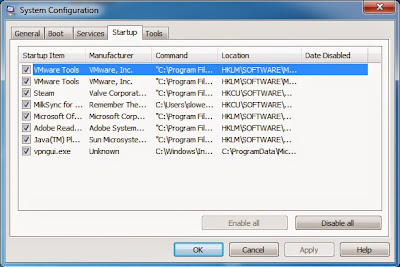
Tip 1: Reduce the number of startup items

In the Start button's search box, type MSCONFIG, then head to the Startup tab. You'll likely see a slew of apps, mostly for system support, but you'll be able to identify some that clearly aren't necessary. There's absolutely no need to have GoogleUpdate or even QuickTime running all the time, for example. Don't delete those that support your hardware or security, but anything blatantly nonproductive can go. You may have to check the program names online with a site like processlibrary.com to see what they are.


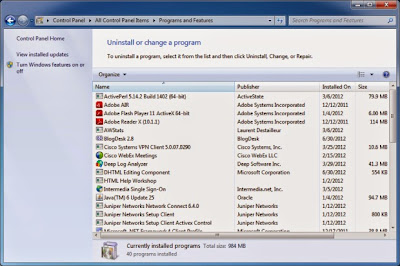
Tip 2: Remove the bloatware installed by vendors

If your computer shipped with a bunch of stuff you'll never use, get rid of that software. Generally, you can go to Start | Control Panel | Programs | Uninstall a program and remove software you no longer plan to use. Many programs will load processes at boot time and take up valuable RAM and CPU cycles. If the software adds items to the startup process, getting rid of it will make the computer start faster and, ultimately, perform better overall. While you're in here, you can also click "Turn Windows Features On or Off" and scan the list to see if there's anything you don't use.


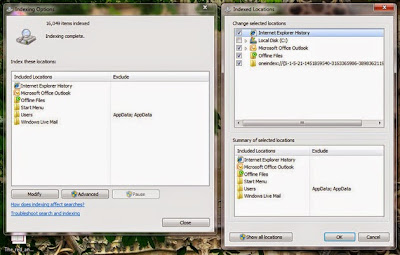
Tip 3: Turn off search indexing

Windows 7's search is good, but it can also affect system performance. If you really need to run a tool at full tilt, you can disable indexing altogether. Of course, if you do a lot of searching, this won't appeal to you, as some searches will be slower. To turn off indexing, open the Indexing Options Control Panel window (if you just type "index" in the Start Menu search box, you'll see that choice at the top of the start menu), click "Modify" and remove locations being indexed and file types, too.


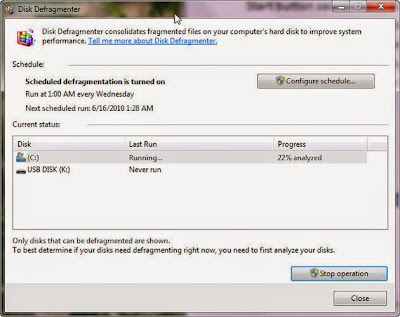
Tip 4: Defragment your hard drive

You can keep your system operating at peak efficiency by periodically defragmenting the hard drive. If, however, you've opted to go with SSD-based storage, don't do this. First, you won't get any performance benefit and second, you'll significantly reduce the life of that expensive SSD. Just type "defrag" in the Windows Start Menu search box, and click on "Disk Defragmenter." The version of the utility is improved in Windows 7, and shows more information about what's happening on your disk than Vista did.


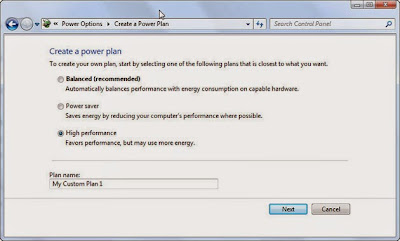
Tip 5: Change power settings to maximum performance

When you choose to use Windows 7' high performance power plan, you might increase the computer's performance in some (but not all) circumstances. It really depends on the kind of work you're doing and how often you allow the computer to sit idle. Of course, this isn't a good choice if you want to save electricity, but it could boost your computing. Go to Control Panel | System and Security | Power Options. From here, click on the left-panel choice "Create a power option" and choose "High Performance."


That is all!If you have some other great tips to speed up windows 7 performance, don't hesitate to share with us!


Tuesday, September 30, 2014

Some Tips to Help You Break Windows 7 Password

If you forget your computer password, how to recover the password? Password lost problem happens everyday. It's really an annoying problem. In this article I will give you some advice and tell you how to break Windows 7 password.

break windows 7 password

Forgetting logon password is such a pain in the neck! But it is not necessary to resort to a computer expert or take your computer to a computer repair shop. This is because you can break Windows 7 password by yourself actually with the 3 methods provided in this page.

Solution 1: Break Windows 7 login password with software


The fastest and easiest method to break Windows 7 login password is using third party software. Windows password breaker tool can reset or remove the forgotten password quickly and safely.

Windows Password Buster is prevalent among computer users. It can reset any logon password, including admin password and other user passwords. Besides Windows 7, it can also reset password on Windows 8, Vista, XP, 2003, 2008, etc.

1. Download and install Windows Password Buster on any PC.
2. Burn a bootable password reset USB flash drive.
3. Boot your computer from the newly burned USB flash drive.
4. Select the account, click Change Password to reset the password.
5. Restart your computer.


Now, you can login your computer without admin/user password.

Solution 2. Break password Windows 7 with admin account


There are 3 kinds of accounts on Windows 7 computer: Administrator, Standard User and Guest. Only the Administrator has the right to operate on other user accounts. In other words, you can login to Windows 7 computer with an accessible admin account. After you login the computer, you can reset all accounts' password via Control Panel. So if you have another accessible admin account, try to break password on Windows 7 with this method.

Solution 3. Break admin password in Windows 7 with disk


Password reset disk is really a life-saver in times when you tried very hard to break admin password in Windows 7. The disadvantage of this solution is that you have to create such a disk before you forgot your password. So it's advisable to create a reset disk when you create your password.

Summary

Of course, you can also reinstall Windows 7, but this option is not recommended. It will erase all your computer data. Moreover, you can resort to other options and totally save the trouble.

All in all, it is really frustrating when you forget password, but choosing the proper solution to crack windows 7 password could be the most important thing for you.

Thursday, September 25, 2014

Windows 7 is the Most Popular OS in the World!

Microsoft's Windows 7 market share had gained 51.21 percent last month. Windows 7 growth has slowed, but the fact that it now has only half of the market continues to be an embarrassment for Microsoft as it continues to seek broad adoption of the much-maligned Windows 8.


Why Do People Like Windows 7 So Much?


1. Everything just seems easier. You'll take to Windows 7 like a duck to water. Built-in troubleshooters help you fix printing issues, connect to networks and use multimedia and much more.

2. Get better security built-in. It has a 'Windows Defender' built-in to boost the security of your computer against spyware and unwanted software. Alerts are simpler and easier to take action on. And Windows 7 also supports fingerprint readers to unlock your computer or device!

3. Have all your files instantly at hand. Windows XP was a real workhorse, but Windows 7 works even harder. With an easy to use search bar, all your files and documents are instantly available when you need them.

4. There's no need to abandon older applications. Continue to use your old applications because most of them (even though they were designed for Windows XP) will run perfectly with Windows 7 too.

5. Extend the life of your existing PC. It's what's inside that counts and the same is true for your PC. You don't need to upgrade your computer hardware to enjoy a faster and more efficient computer especially when the benefits of Windows 7 are just a click away.

Will Users Have Plan for Windows 8?


Bill Gates said "higher is better" when asked whether he used Windows 8, but this isn't always the case in Windows-land. I remember Windows Me, which loved to blue-screen - I stuck with Windows 98. I remember Windows Vista, which couldn't transfer files over a network at reasonable speeds - like many people, I stuck with Windows XP. Now a new Windows version shows up again and it's time to evaluate whether this one is worth the upgrade (like 7 was) or whether we should stick with the old version of Windows once again.

More than 50 percent of computer users use Windows 7. Have you ever thought about what is the biggest problem for Windows 7 users? Myabe you haven't thought about it yet. But here I would tell you that it is losing Windows 7 password. Don't worry, here is a video which can help you crack Windows 7 password.


If you need more information, feel free to visit: How to Bypass Windows 7 Password?

Tuesday, September 9, 2014

Forgot Dell Windows 7 Password, How to Reset the Password?

Situation 1: Windows 7 Dell Inspiron Laptop Administrator Password Lost

my house based computer i haven't used it for about a whole year. I have 2 accounts on there and they are both secured by a password (which i forgot) and they are both administrated accounts. Also i never got the chance to make reset disk so i don't have one of those either. What am i supposed to do? Please be as specific as possible. I have a laptop and i was just wondering how can i go about making reset disk on here , and will it work for my house computer?

Situation 2: Forgot Windows 7 Password on Dell Home Premium Laptop?

I added a password to my Administrator account the other day - I thought it would be a good idea to use a different one from the password I use for everything else but, having not used my computer since then and being an idiot, I've completely forgotten it.

I can still access the guest account but to do many things such as install programmes I still need the administrator password. Being a student, I can't afford to have the problem rectified professionally.


Windows 7 Password Recovery Solution for Dell Laptop and Desktop PC

You can format or reinstall the Windows 7 system by using the Windows installation disk or a system repair disc if you don't mind losing some data stored in the hard drive. If you don't want to lose any data, you can use third party password recovery software to reset or remove the forgotten Windows 7 administrator password on your Dell computer.

Ophcrack is a free Windows password cracker based on rainbow tables. It is a efficient implementation of rainbow tables done by the inventors of the method. Ophcrack could figure out your password, but there's no guarantee that the Opchrack will work effectively for every Windows 7 lost password users. In that case, paid software called Windows Password Buster will be an ideal solution for you.

Windows Password Buster allows you to make password reset disk with CD/DVD/USB to reset or remove forgotten Windows 7 administrator password. This software is easier to operate than any other similar products. You can reset the password within 5 minutes.

Below is a video on how to use Windows Password Buster:


For more information, please see How to Reset Windows 7 Password.

At last, I hope you won't face any problem after reading this complete tutorial on how to reset Dell Windows 7 administrator password. If you have problem when you reset your password, feel free to give me a shout at below comment box. I will be happy to help you.

Saturday, August 30, 2014

8 Handy Features in Windows 8 You will Love

Windows 8 has been a hot topic recently. The transition from Windows 7 to Windows 8 introduced a number of new features across various aspects of the operating system. Among these included a greater focus on optimizing the system for touchscreen-based devices and cloud computing. You could spend hours scrounging for them all-or you could just read this article. Here are brief descriptions to some top features you would be keen to know about:


1. The Secret Start Menu

Microsoft has replaced the old Start orb with an animated, tiled page of apps, but there's still a Start menu of sorts in place. Moving your mouse cursor down to the bottom-left of the screen and left-clicking switches to the tiled Start page, but if you right-click instead, you'll be met with a menu linking to key areas of the operating system, including Control Panel, Task Manager, programs list and other key areas of the system. From here you can search for files, launch the Run box, open the File Explorer and more.

2.Improved Search Function

Unlike Windows 7, Windows 8 has no search box at the bottom of the Start menu. Heck, it doesn’t even have the trademark Start menu! That doesn’t mean that there’s no search function available. All you need to do is to type anything, and a search box will appear from the right and give you the results. The search capability is even stronger this time, displaying all the matching apps and files instantaneously.

3. Keyboard Shortcuts

Swiping and tapping around Windows 8 is fine on a touchscreen interface, but what about standard laptops and desktops?

Knowing the keyboard shortcuts for Windows can save you a lot of clicking and dragging with the mouse, and make it easier to navigate the operating system.

Win+C brings up the Charms bar, for example, while pressing the Windows key on its own switches between the desktop and the Start page. Another useful one: hit Ctrl+Tab on the Start page to switch to the 'All apps' view.

4. Snap Your Apps

As you may already know, Windows 7 allowed you to snap windows to the side of the screen by clicking and dragging the title bar.

Windows 8 goes one step further, enabling users to dock a Start page app to the side while you work on the desktop.

So, for example, you can keep an eye on the forecast while playing around in Photoshop, or stay in touch with your Twitter feed via the People app while crunching numbers in Excel.

To dock a full-screen Start page app, drag it from the top to the left or right of the screen. You can run Start page apps alongside each other too.

5. Sync Everywhere

Windows 8 supports the old user account system, but it can also create a new kind of user account that's linked to your Windows ID, and pulls in information from SkyDrive, Xbox, Hotmail/Outlook and all the other cloud services the company is pushing.

If you've just upgraded to Windows 8, then you might still be using your old user account, and you may not realize the features available with the new Windows IDs. Sign in with this ID (it's the same one you use for Microsoft services like SkyDrive and Outlook.com). It will make syncing emails and photos easier, and it will transfer your Windows 8 settings and preferences instantly to any other location you sign in from.

6. Built-in Screenshots

The Snipping Tool introduced in Windows 7 is still present in Windows 8, but there's an even easier way to get a screenshot of your display-hit the Windows button and PrtScrn at the same time to save a PNG screengrab to a Screenshots folder in the Pictures library. Press Win+C to bring up the Windows 8 Charms. Use Win+X to display the secret Start menu we mentioned earlier. Hit Win+D to switch to the desktop app from anywhere else in Windows 8.

7. File History

New in Windows 8 is File History, which works in a similar way to Apple's Time Machine technology, automatically logging older versions of your files that you can restore as and when required. The feature isn't enabled by default though, so you'll need to open up the System and Security screen in Control Panel to get it up and running. You'll also need a second hard drive to save your file version history too. Once everything is set up, it works automatically, and can prove a lifesaver if you lose your holiday photos or a week's worth of work.

8. The Easy Reinstall

Reinstalling Windows used to involve messing around with product keys, DVDs and backups. It could take up half your day. Windows 8 streamlines the whole process, which can be completed with just a few mouse clicks.

Head to the Change PC Settings link from the Settings charm. Under the General tab, you'll find you can "Refresh your PC" or "Remove everything." Use the first option to restore Windows to its factory setting while leaving your personal documents, files and personalizations intact. If Windows is running sluggishly, or there's a problem with the OS settings, or something has gone wrong with your hardware/software setup, then this is the choice to go for.

Saturday, August 16, 2014

How to Crack Windows 7 Password On Your Own?

We have already talked about some password recovery tips on this blog. These kinds of methods can help you get pass Windows 7 login screen when you forget your password. Today we tell you how to crack Windows 7 password when you cannot login Windows.

how to crack windows 7 password?

Method 1: Crack Windows 7 Admin Password without Software


There are 2 types of account on Windows 7, standard user and administrator. Here I will show you how to crack Windows 7 admin password with default administrator account.

First you need to boot computer from safe mode as it is disabled in normal mode. Under safe mode the default administrator account is enabled to login without password. Then you can reset the forgotten user account password via control panel. Below is a detailed guide for you:

1. Press F8 key when you turn on the computer to get to the boot menu.
2. Select Safe Mode option, and then press ENTER.
3. When you reach the login screen, type Administrator in the username box and leave the password field as blank, and then click OK.
4. Now you can open Control Panel and reset your password in User Accounts zone.

It seems quite simple to hack Windows 7 password if you have a password reset disk. Assure that you had created it in advance when you remembered your password. It is easy to crack the password with the password reset disk, what you need to do is follow the step-by-step guide to create a new password for the user account.

These methods are helpful, but might be unsuitable for your case. If these methods do not work for you, don't worry, you could have a try on third party password cracker tool.

Method 2: Use Windows Password Resetter to Crack Password


One of the popular Windows 7 Password Cracker is Windows Password Buster, which is designed to reset password on Windows 7 system so that you can regain access to your computer without entering any password.

Windows Password Buster can reset any Windows password, including Windows 8/7/ Vista/XP/2008/2003/2000 password. It can reset domain administrator password as well. No matter how complicated your password is, Windows Password Buster can reset it in minutes. You can see the video guide below to learn more.


After reading this article, you should know how to crack Windows 7 password when you forget it. BTW, you can also crack Windows 8/Vista/XP/2012/2008/2003/2000 passwords with these methods.

Monday, August 4, 2014

How to Reset Windows 7 Password with or without Disk?

If you forget your Windows 7 password, how to reset the password? The methods listed in this article can help you reset Windows 7 password with or without disk. Still bothered about forgetting password and have no reset disk? Just need a few minutes to read these methods, and pick the right one to take it to carry out.

How to Reset Windows 7 Password?

Solution 1: Reset the Password with Password Reset Disk


Win 7 OS allows you to create a password reset disk. When you forgot your password and locked out of computer, you can use the disk to reset the forgotten password. But this method only works with the man who had created a password reset disk before he forgot Windows 7 password. The following steps show you how to use the reset disk.

Step 1. On the logon screen, type a incorrect password, and then press ENTER to logon. When message "The user name or password is incorrect" appears, click "OK".

Step 2. You will see a "Reset password" link under the password box, click the link.

Step 3. Insert the password reset disk, and then follow the instructions to reset Windows 7 administrator password.

Solution 2: Reset Windows 7 Admin Password with Command


Microsoft provides many useful command, some of them could help us to reset Windows password. If you can logon computer with another user account which has administrator privilege, you can easily reset Windows 7 password by using "net user" command. This command is also used on windows 8, vista, xp, etc. Now, you can reset your password in two steps:

Step 1. Click Start button > Type cmd.exe in search box > Right click cmd.exe on search result > Run as administrator. If you logon computer with administrator account, you can run cmd.exe directly without "Run as administrator".

Step 2. Type "net user <user name> <new password>" in the command window. Please replace <user name> with your user name, and replace <new password> with the new password. When the window displays the message "Command completed successfully", the password has been reset successfully.

Solution 3: Reset Password via User Account Management


Although "net user" command can help you reset windows 7 admin password effectively and quickly, many users prefer graphical-user-interface to black-white command window. User Account Management panel offers friendly UI to manage user account profile, which is most easier to accept by computer beginners.

Step 1. Get to Control Panel, click User Accounts and Family Safety > User Accounts > Manage Accounts.

Step 2. Click the user account you want to change its password, and then a sub panel "Change an Account" is opened.

Step 3. Click "Change the password" on the left of panel.

Step 4. Type new password, and click "Change Password" button.

Solution 4: Reset Password on Windows 7 with Software


If the methods above don't work for you at all, you can try this method. What you need to prepare is an accessible computer and a blank CD/DVD or USB flash drive. Here I pick up the best Windows password recovery tool - Windows Password Buster to help you reset password on Windows 7 system.

Step 1. Download and Install the software on the accessible PC.

Step 2. Insert the CD/USB and burn a password reset disk.

Step 3. Insert the password reset disk into the locked PC and boot the PC from the disk.

Step 4. When you get to the password reset screen, select the locked account and click "Change password" button to reset its password.

Solution 5: Help Video on Windows 7 Reset Password


If you find the methods above are hard to understand, you can watch the video below. Try to follow this video guide to reset password.


Of all the 5 solutions listed above, Windows Password Tool is the ideal choice for you to reset Windows 7 administrator or user password under all circumstances. Choose them accordingly to help you reset password.